
Local AI for beginners: Ollama, a first model and OpenCode and Hermes Agent for agentic AI when needed, in 6 steps
Here is a six-step path to get you started with local AI, in the order you'll actually need it.
Which path should you use?
| Your situation | What to use |
|---|---|
| First time, just exploring | Ollama + a small local model, to chat offline (steps 1–2) |
| Everyday coding, privacy matters | OpenCode on your local Ollama model — nothing leaves your machine (step 3) |
| Need the strongest coding model | An OpenCode Zen model, selected and tested by the OpenCode team (step 4) |
| Model too big or too slow for your hardware | An Ollama cloud model, paid as you go on ollama.com (step 5) |
| Running a heavy autonomous agent | Hermes Agent on a large-context model — for long autonomous missions (step 6) |
The beauty of this stack is that the steps stack instead of replacing each other. Ollama is the foundation in every case; OpenCode is your everyday cockpit; Zen and the Ollama cloud are escape hatches for the moments your hardware needs a hand. Start with steps 1 and 2 today — you'll be talking to a private model on your own machine in minutes.
Step 1: install Ollama
Ollama is the tool that downloads models and runs them on your hardware. It's free, works on GNU/Linux, macOS and Windows and hides all the messy inference details behind one command.
Installing Ollama is always the same action — but the method depends on your system:
| System | How to install | After installing |
|---|---|---|
| GNU/Linux | One command in the terminal: curl -fsSL https://ollama.com/install.sh | sh |
No official graphical app: Ollama is driven from the terminal |
| macOS | Download the .dmg from the download page, drag Ollama into Applications and launch it |
An icon in the menu bar |
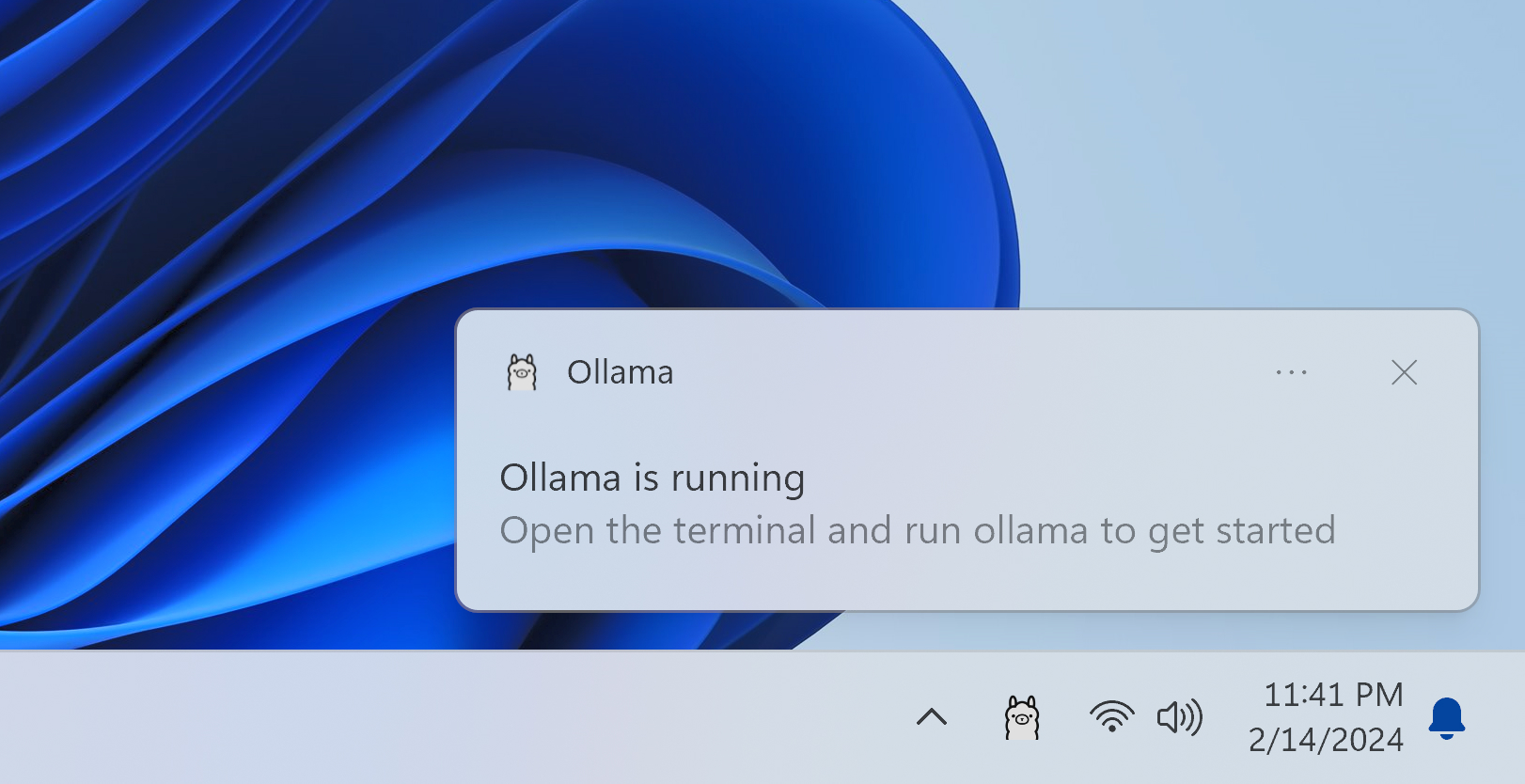
| Windows | Download and run the installer from the download page | An icon in the tray, near the clock |
Once started (or installed on GNU/Linux), Ollama keeps running in the background — you don't have to type anything to keep it alive. Whichever method you used, the same command is available:
ollama --version
Ollama runs a small background server (by default at http://localhost:11434) that every command and every agent talks to. The desktop app starts it for you; on GNU/Linux the normal install runs it as a service. Our complete Ollama guide goes much deeper when you're ready.
Ollama runs on the CPU too. It will be slower, but a small model still works on an ordinary laptop. A modern GPU just makes it faster — start with what you have.
On macOS and Windows, Ollama ships a desktop app: you click its icon to open it and it keeps running in the menu bar or the tray. On GNU/Linux there is no official Ollama GUI — everything is done from the terminal. Underneath, both use the exact same engine, so the rest of this guide applies to everyone.
Step 2: download your first model
A model is the file that actually "thinks". Ollama downloads it once and then keeps it on your disk, so it works fully offline afterwards.
For a first model, pick something small enough to run smoothly on almost any machine:
ollama pull gemma4:e2b
The download is around 7 GB. If you're using the desktop app, you can also pick the same model from its built-in list instead of typing the command. Then chat with it:
ollama run gemma4:e2b
Type a question, and when you're done, leave with:
/bye
If that feels too heavy for your machine, llama3.2 is a lighter, faster starter. The rule of thumb is simple: bigger models are smarter but need more memory. Start small, see how fast it feels and size up later. Our guides on choosing coding models and matching models to hardware cover the details.
At this point you have a private chatbot running on your own computer. Everything else below is about turning it into a tool that does real work.
Step 3: install OpenCode
Chatting is fine, but the real payoff is an agent — a tool that reads your project, edits files and runs commands on your behalf. OpenCode is an open-source coding agent that lives in your terminal, and it connects to Ollama.
You have two ways to install it.
The easy way — let Ollama do it:
ollama launch opencode
That command ships with Ollama. It installs OpenCode if needed and wires it to your local Ollama server automatically. When prompted, choose the model you pulled in step 2.
The manual way — same action, a different command per system:
| System | Command |
|---|---|
| GNU/Linux, macOS | curl -fsSL https://opencode.ai/install | bash |
| macOS, GNU/Linux (Homebrew) | brew install anomalyco/tap/opencode |
| Windows | npm install -g opencode-ai |
Then, inside a project folder, run opencode and use /models to select your local model. Because OpenCode and Ollama are both on your machine, nothing you type leaves it.
Then Ollama is already running in your menu bar or tray — leave it open, there's nothing to start. But note one thing: unlike Ollama, OpenCode has no graphical version. It lives in your terminal, so you'll open a terminal window once, go to your project folder and run the command. On GNU/Linux this is the only option anyway, since Ollama has no GUI there.
Step 4: try an OpenCode Zen model
Sometimes you don't need to run the model yourself. You want the strongest coding model available, right now, without buying a GPU. That's what OpenCode Zen is for: a curated list of cloud models, tested by the OpenCode team and billed per use. It's completely optional — but it's the smoothest way to get a big model into the agent you just installed.
- Run
/connectinside OpenCode and choose the OpenCode provider. - Sign in at the auth page, add a payment method and copy your API key.
- Paste the key back into OpenCode.
- Run
/modelsand pick one.
Zen is pay-as-you-go: you add credits and are charged per request, with no subscription required.
Using Zen means your prompts, your code and the answers are sent to OpenCode's gateway and to the model providers behind it. OpenCode says its providers follow a zero-retention policy and do not use your data to train models, but there are documented exceptions:
- Free and stealth models (Big Pickle and the free MiMo, Exo, LL Alpha and Nemotron variants) may use collected data to improve the model during their free period.
- NVIDIA free endpoints are trial use only: do not submit personal or confidential data, and sessions are logged for security and product improvement.
- Beam Free does not train on your data but retains it for 30 days for safety reasons.
- Muse Spark 1.3 Contributor Free is discounted in exchange for permission to train future Meta models on your prompts and completions.
- OpenAI and Anthropic APIs retain requests for 30 days under their own policies.
Paid models from the standard providers are the safe default. Read the exact terms before sending anything sensitive: OpenCode's privacy policy and the Zen data section.
For a coding agent, our recommendation as of October 2026 is GLM-5.3-Flash Free: it is free to use and fast; its provider follows Zen's zero-retention policy — your requests are not retained and not used to train models. DeepSeek V4.1 Flash Free is an equivalent free alternative.
When OpenCode Zen answers, your prompts and code leave your machine — that's the price of borrowing a data center's power. It's a deliberate choice, not a habit. Keep local as your default for anything sensitive and reach for Zen only when a task genuinely needs it. This is the same "local first, cloud as a fallback" logic we describe in our hybrid setup guide.
Step 5: when your machine isn't enough, pay for more power
At some point a job will be too big for your hardware — a 100B+ model that simply won't fit in your memory or a long agent session that crawls on CPU. You have two clear signals:
- The model you want won't load at all or spills onto the CPU and becomes painfully slow.
- The model fits but keeps failing on tasks that clearly need more reasoning power.
When that happens, either you buy a very powerful machine (but a very expensive one) dedicated to local AI or you register on ollama.com and pay for the power instead: Ollama also runs the largest open models in its cloud and you use them through the exact same tools you already set up.
Sign in with the Ollama app or CLI, then pick a cloud model. In the app it shows up as a :cloud suffix, for example:
ollama run glm-5.3-flash:cloud
That model runs on Ollama's datacenter GPUs — no download, no local memory cost — while your OpenCode workflow stays exactly the same.
The Free tier includes starter usage credits and pay-as-you-go billing, so you can try cloud models without a subscription. Pro is $20/month (or $200/year) for shorter well-defined tasks and Max is $100/month for running several agents at once — each with a set amount of monthly usage credits included. Running models on your own hardware stays unlimited on every tier.
So the escalation path is deliberately cheap: run local by default and, when a specific job needs a bigger brain, point the same tool at an Ollama cloud model for that job. You scale the model, not your setup.
Step 6: use an agent when a project really needs one
Everything so far gives you a model and a coding cockpit. A true agent goes further. Hermes Agent is a self-improving open-source agent and a big step beyond the tools above: it plans across many steps, keeps memory between sessions, connects to your own accounts and services and can run unattended, on a schedule.
Because it is so much more capable, it is also heavier and less predictable. Reserve it for projects that genuinely need agentic AI — long, multi-step missions like our job-search agent or the wider agentic AI life organizer. For everyday edits, OpenCode on a small local model stays cheaper and simpler.
An agent stacks up the conversation history, the files it reads and the definition of every tool it can use, so it needs a large context window — 64k tokens at minimum for reliable tool calls. A big window is memory-hungry: on a modest machine the model spills onto the CPU and crawls. Check what's actually allocated with ollama ps and see how to raise the context window.
The simplest way to give an agent the context it needs is to run it on a cloud model, which comes with a large window by default. On OpenCode Zen, pick an agent-ready model such as GLM 5.3 or Kimi K2.7 Code — the free GLM-5.3-Flash Free from step 4 also works for lighter runs. Or move to an Ollama cloud model on ollama.com. Ollama launches Hermes for you:
ollama launch hermes
Start it on the laptop you already use, then move it to an always-on machine when you want it to work while you sleep.